District Light Login Problems: Can't Sign In on Android App or Mobile Browser?
Common District Light Login Errors and What They Mean
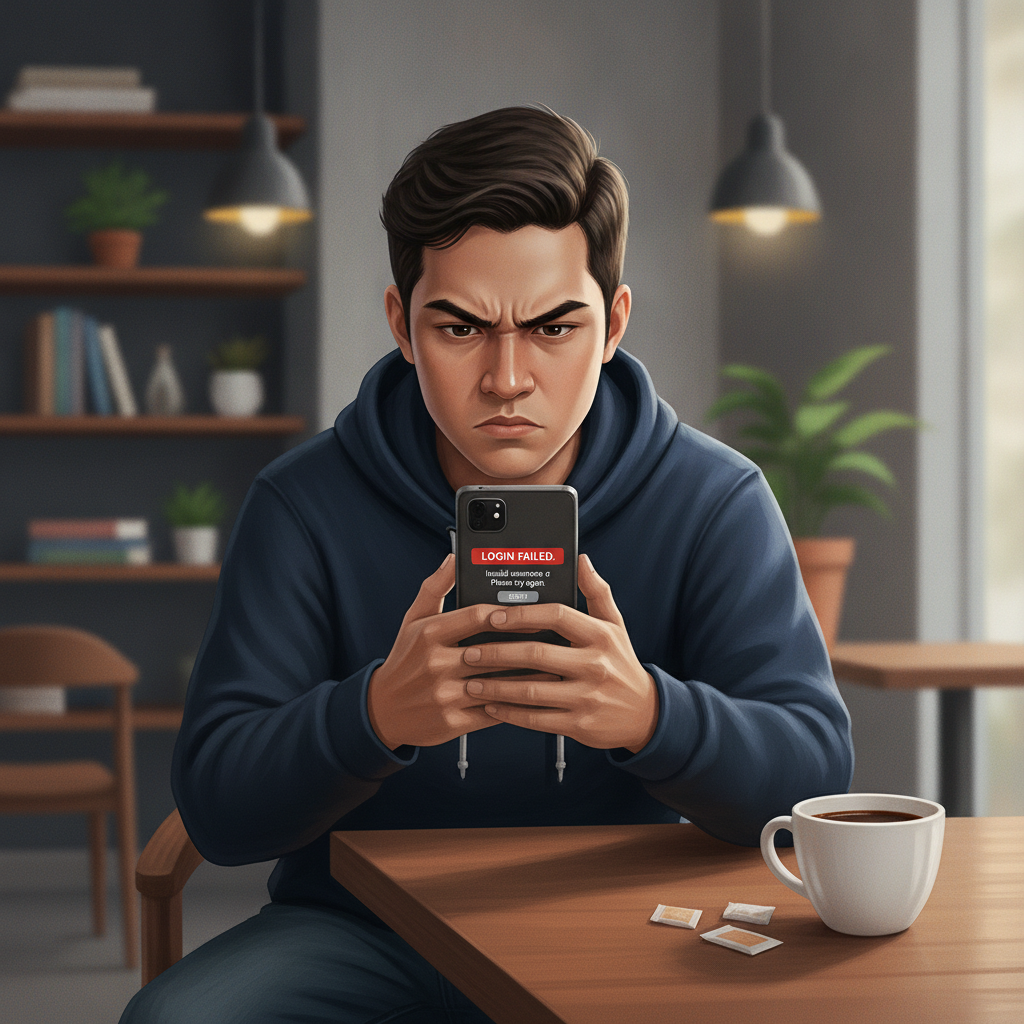
When you try to sign in to District Light on your Android phone or mobile browser and hit an error, the message usually points to one of a few causes.
Wrong password or username is the most common issue. District Light asks for the mobile number or email you registered with, plus your password. If you mistype either, the login fails. Double-check your number format—some players add a leading zero or country code by habit, but District Light expects the format you entered during registration. If you saved your credentials in your phone's autofill, make sure it hasn't mixed up accounts from other casino or e-wallet apps.
Account locked or suspended messages appear when District Light's security system flags unusual activity or when a player triggers multiple failed login attempts in a short window. The platform may temporarily lock the account to prevent unauthorized access. This is more common if you share a device or if someone else tried to guess your password. Account locks for verification reasons can also happen if you haven't completed ID checks or if there's a pending withdrawal review.
Server maintenance or connection errors show up as "unable to connect" or "service temporarily unavailable." District Light runs scheduled maintenance, usually late at night or early morning Manila time, and during those windows the login page may not load. If you see this error during peak hours—evening or weekends when PBA or NBA games are live—it might be heavy traffic rather than maintenance. Mobile data or Wi-Fi quality also plays a role; a weak signal can time out before the login completes.
Clearing Cache and Cookies on Mobile Chrome
Old or corrupted cached files on your Android browser can stop District Light's login page from loading correctly. The site's scripts may be outdated, or a saved session cookie might conflict with a new login attempt. Clearing cache and cookies takes a minute and often fixes "page not responding" or "infinite loading" issues.
Open Chrome on your Android device. Tap the three-dot menu in the top-right corner, then go to Settings > Privacy and security > Clear browsing data. Make sure you're on the Basic tab. Check the boxes for Cookies and site data and Cached images and files. Leave Browsing history unchecked if you want to keep your history. Set the time range to All time to catch any older files that might be causing trouble. Tap Clear data and wait for the confirmation message.
Close Chrome completely—swipe it away from your recent apps list—then reopen it and navigate to the District Light site. Try logging in again. You'll need to re-enter your username and password because the saved session is gone, but the login should work if cache was the problem.
If you use a different browser—Firefox, Samsung Internet, or Opera—the steps are similar. Look for a privacy or data management section in settings, select cookies and cache, and clear them for all time.
Reinstalling the District Light APK or Switching Between App and Browser
If you installed the District Light Android app by downloading the APK file, a corrupted install or an outdated version can cause login loops or crash-on-open errors. Reinstalling the APK gives you a fresh copy of the app and often resolves issues that cache clearing doesn't touch.
First, uninstall the current app. Go to your phone's Settings > Apps, find District Light in the list, and tap Uninstall. This removes the app and its local data. Next, open your mobile browser and visit the District Light site to download the latest APK. The site usually has a download link in the menu or on the homepage. Tap the link, and your browser will download the APK file. You may see a security prompt asking if you want to install apps from this source; tap Allow or Settings and enable Install unknown apps for your browser.
Once the download finishes, open the APK file from your notifications or file manager and tap Install. When installation completes, open the app and log in with your credentials. If the app still won't let you in, switch to the mobile browser version as a backup. District Light's browser site works on Chrome, Firefox, and other Android browsers, and it mirrors the app's features. Sometimes the browser session will work when the app doesn't, especially during high-traffic periods or if your device has limited storage affecting app performance.
If the browser version logs you in successfully, you can continue playing there while you troubleshoot the app or wait for District Light to release an update. Check the site's announcements or social channels for news about app patches.
How to Reset Your Password on District Light
If you've tried the correct username and password multiple times and still can't log in, or if you genuinely forgot your password, District Light offers a reset option.
On the login screen—whether you're on the app or mobile browser—look for a Forgot Password? or Reset Password link. Tap it, and you'll be asked to enter the mobile number or email address tied to your account. District Light will send a verification code by SMS or email. Check your messages; the code usually arrives within a minute or two. If you don't see it, check your spam folder or make sure your phone has signal.
Enter the code on the reset page, then create a new password. District Light typically requires a mix of letters and numbers and a minimum length of six to eight characters. Avoid reusing the same password you just forgot—write the new one down or save it in a password manager on your phone. Once you submit the new password, you'll be logged in automatically or redirected to the login screen to sign in with the updated credentials.
If the reset link doesn't send a code, or if the code doesn't work, it may mean the mobile number or email on file is outdated. In that case, you'll need to contact District Light support directly.
Contacting District Light Support for Account or Login Issues
When self-service fixes don't work—your account is locked, the password reset fails, or you suspect someone else accessed your account—reach out to District Light's customer support team.
The site offers live chat as the fastest option. Look for a chat icon in the bottom corner of the homepage or in the app menu. Live chat is usually available 24/7, and a support agent can verify your account details and unlock it or escalate verification issues. Have your registered mobile number or email ready, plus any ID documents you used during sign-up, in case the agent asks for proof of ownership.
District Light also lists an email address for support tickets. Email is slower—responses can take a few hours to a full day—but it's useful for detailed issues like disputed account locks or technical bugs. Describe your problem clearly: mention whether you're on the app or browser, the exact error message, and what you've tried so far. Screenshots help, especially if the error is a code or alert you don't recognize.
Some players report success reaching out through District Light's social media channels—Facebook or Telegram groups. These aren't always official support lines, but community managers sometimes monitor them and can forward urgent cases to the tech team.
Be cautious of anyone who messages you first claiming to be District Light support. Legitimate agents will never ask for your full password or request you send money to "unlock" your account. If you receive a suspicious message, ignore it and go directly to the official site or app to contact support.
Preventing Future Login Problems
Once you're back in, take a few steps to avoid repeat lockouts. Save your password securely—use your phone's built-in password manager or a third-party app like Bitwarden. Enable two-factor authentication if District Light offers it; this adds a verification step but also protects your account if someone guesses your password. Keep the app updated: check the District Light site every few weeks for new APK versions, or re-download if you notice performance drops. Avoid sharing your device with others while logged in, and always log out if you're on a shared or public Wi-Fi network.
If you travel outside Metro Manila or switch between mobile data and Wi-Fi frequently, District Light's security system might flag your account for location changes. This is normal, but if you know you'll be moving around, keep your phone number active so you can receive any verification codes the platform sends.
21+ Only and Gamble Responsibly
District Light is for players aged 21 and over. Online casino games and sports betting involve real money and real risk. Set deposit limits you can afford, take breaks if you're chasing losses, and never borrow money to gamble. If you or someone you know is struggling with gambling, seek help from a local support organization.
Login problems are frustrating, but most resolve quickly with cache clearing, an app reinstall, or a password reset. If you've worked through these steps and still can't access your account, District Light's support team can investigate further and get you back to your favorite slots, live tables, or sports bets.